
A video call freezes, the laptop drops its connection, or a phone works in the living room and struggles in the next room. Any of these might look like a Wi-Fi problem. The cause could be the device, wireless coverage, the local network or the internet provider’s connection.
Compare a few situations before paying for a faster plan or buying a repeater. These checks are designed for homes and small businesses. If the fault comes and goes or several devices are involved, keep your results for a closer look.
1. Find out what fails and who is affected
Note the location, time and devices involved. Try two different websites or apps. If only one fails, its own service may be responsible. Next try another phone or computer in the same place on the same network. If one works and the other does not, you have narrowed down where to look, although you have yet to establish the cause. Microsoft includes this comparison in its Wi-Fi troubleshooting guide.
Distinguish a slow connection from a device disconnecting from Wi-Fi or displaying “no internet”. A device can stay connected to Wi-Fi after the internet connection goes down.
2. Compare Ethernet with Wi-Fi
If you have a computer and a known-good Ethernet cable, plug it into a LAN port on the router. Temporarily turn off Wi-Fi on that computer so the test uses the cable. Leave the fibre connection and WAN port in place. If there is no link, check both ends or try another cable. Microsoft’s Ethernet troubleshooting guide.
Run a speed test with the same service, first over Ethernet and then over Wi-Fi near the router. Avoid heavy downloads during the comparison. Record download speed, upload speed, latency and dropouts. Repeat the measurements to see whether latency fluctuates or the connection drops. Microsoft recommends establishing a baseline and recording tests at different locations.
| What you observe | What to check first |
|---|---|
| Ethernet is stable and Wi-Fi deteriorates as you move away | Coverage, obstacles and router placement |
| Ethernet is stable and Wi-Fi fails even near the router | Interference, settings and client devices |
| Several devices also have problems over Ethernet | Router, local network and internet provider’s connection |
| Only one device has the problem | Network adapter, software and settings on that device |
Use these observations to decide what to check next. A slow Ethernet port or adapter can also limit the wired test.
3. Test coverage room by room
Repeat the same test where the dropouts occur. If it works close to the router and deteriorates through walls, look at coverage. Put the router somewhere relatively central and unobstructed, clear of large metal surfaces and out of enclosed furniture.
The 2.4 GHz band generally reaches farther. The 5 GHz band can offer more capacity, although obstacles have a greater effect. The result depends on the surroundings and the devices. If you can select both bands, test them in the same spot. Compare latency, speed and dropouts even if the signal bars look similar. TP-Link’s Wi-Fi signal guide.
4. Change one setting at a time
Check the manual for your model and back up the settings first. Change one thing and repeat the test. If you want to see whether restarting helps, record the symptoms first and choose a time when you can interrupt the connection. Use the restart option. A factory reset can erase settings needed to get online.
Automatic channel selection is a reasonable starting point. If problems persist, use local measurements to choose a channel. On 2.4 GHz, a channel width of 20 MHz can help neighbouring networks coexist. In Spain, keep the correct country profile when reviewing channels and transmit power. Apple’s guidance on channels, bandwidth and regional restrictions.
Check for official router and device updates. Follow the provider’s procedure if it manages your router. Use a strong password and WPA3 where supported, or WPA2 with AES as appropriate for your devices. Apple’s recommended router settings.
5. Choose between Ethernet, an access point and mesh
Ethernet for fixed workstations
Consider Ethernet for office computers and other stationary devices that are sensitive to dropouts. A wired connection also leaves wireless capacity for devices that move around. Check the cable route and the ports available before assuming a different cable will solve the problem.
An access point for another part of the building
A wired access point takes Wi-Fi to another area using Ethernet for its connection back to the router. Place it according to where people work and which obstacles are in the way. In business premises, also check the number of simultaneous devices and whether staff and visitors need separate networks.
When mesh makes sense
A mesh system coordinates several nodes. Performance depends on the model, placement and the link between nodes. A wireless node installed where reception is already poor can still perform badly. If supported, Ethernet between nodes leaves wireless capacity for clients. Check the wiring layout and compatibility for your particular product. TP-Link’s explanation for Deco systems.
If the Ethernet and coverage tests point to the router, compare models in the Wi-Fi 7 router guide. If dropouts coincide with power cuts, see how to size a UPS for your router.
Quick checklist before asking for help
- Does one app fail, or do several?
- Are one or several devices affected?
- Does it happen over Ethernet too?
- Does moving closer to the router help?
- Have you recorded times, locations and test results?
- Do you know the router model and which devices sit between it and your computer?
Frequently asked questions
Will a faster internet plan fix slow Wi-Fi?
It can help if the internet connection itself is the limiting factor. Poor wireless coverage and problems on an individual device need a different fix.
Will a repeater always stop dropouts?
Its performance depends on placement and on the connection it receives. Diagnose the problem before choosing how to extend the network.
When should I ask for technical help?
Seek an assessment when dropouts recur, disrupt work or remain hard to isolate. If several devices also fail over Ethernet, share the results with your internet provider and check the local network.
The networking and Wi-Fi service can assess coverage or cabling for a home or business. To send an enquiry, include the locations affected, the times and the result of the Ethernet test.
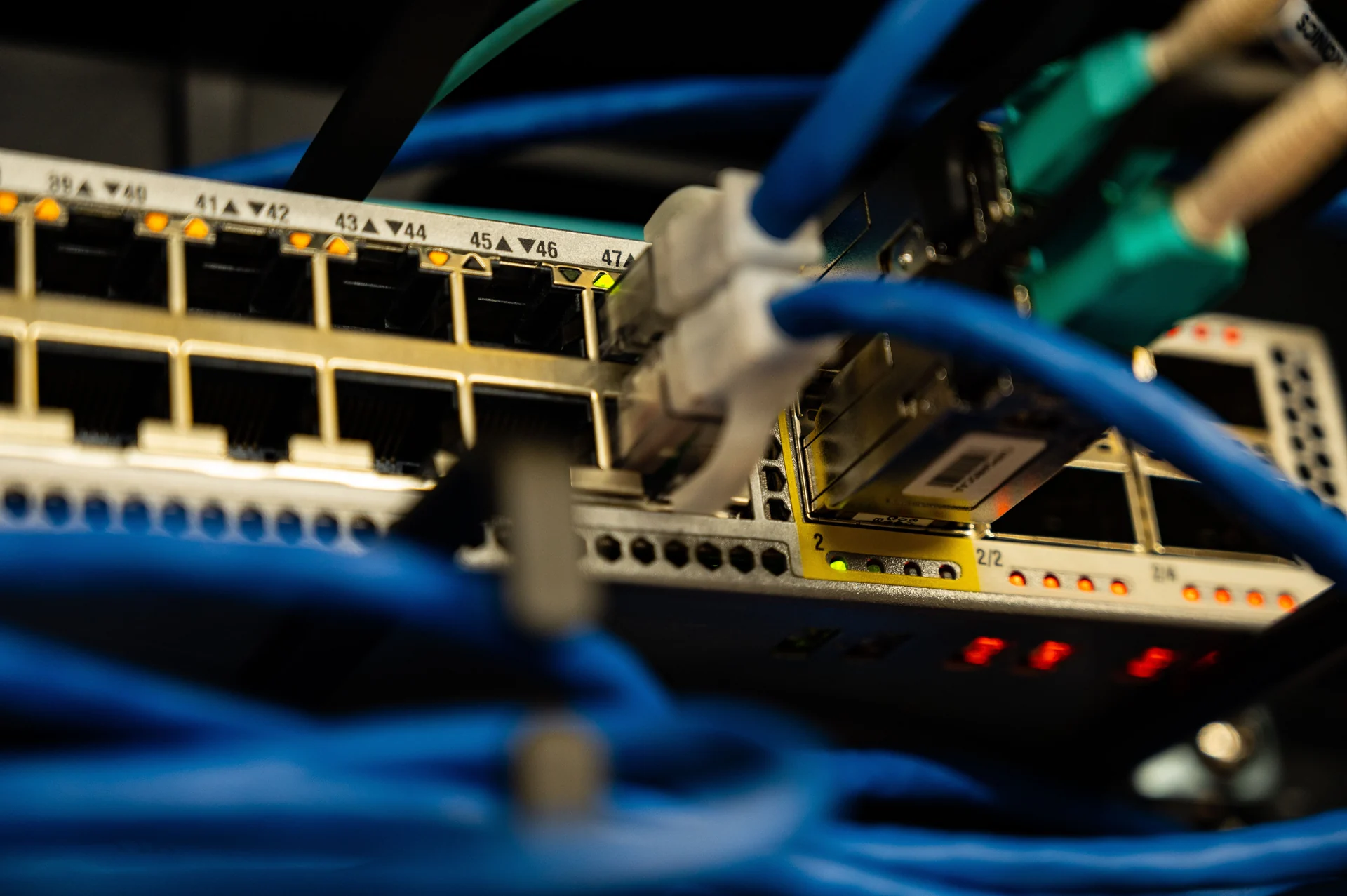
Photograph by Brett Sayles on Pexels · Pexels licence.